Is your file actually 300 DPI? (How to tell before a buyer complains)
DPI is not a fixed fact about a file, it is the relationship between pixel count and print size. Printprep.art shows the real number for every size before you spend an artwork slot.
What you think you know about 300 DPI is probably wrong, and that is not your fault. The same explanation gets copied from blog to blog, repeated by sellers and print shops alike, and nobody ever stops to check if it is actually true. There is one word you need to know before any of this makes sense, and once you know it, the rest falls into place.
That word you need to know about 300 DPI is upscaling. Once you understand what it actually does to a file, “300 DPI” stops being a mystery and starts being something you can check for yourself.
What upscaling actually does
Upscaling adds real detail to a file. It works in small increments, painting in new pixel information instead of just stretching the pixels that are already there.
That is how a file can reach true 300 DPI at a size its original pixel count could never cover on its own, and why the result still resolves sharply even up close, not just from across the room.
There is only so much of that an image can take before it has effectively been repainted from scratch. In practice, that ceiling sits around 16x magnification.
See it in action
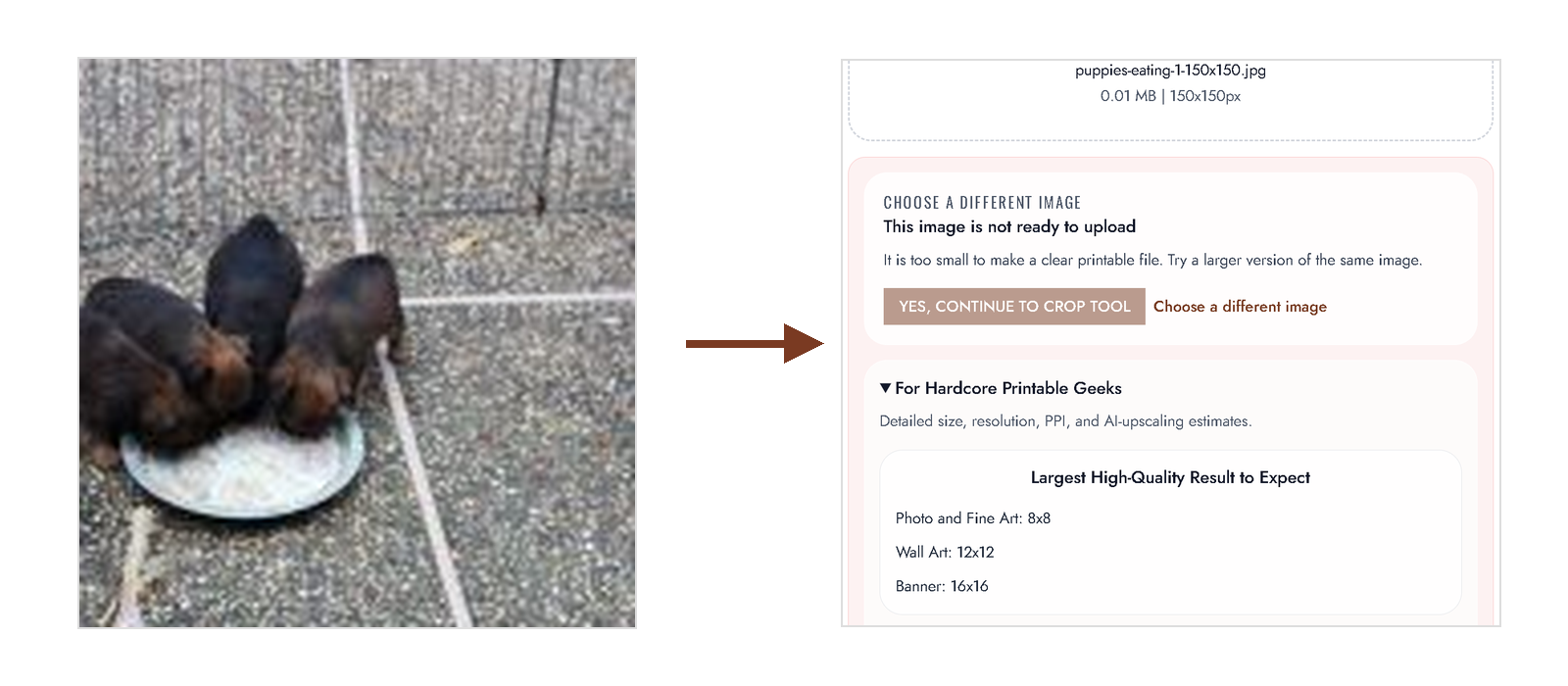
150x150px source. The largest reliable result: 12×12 Wall Art, 8×8 Photo and Fine Art, 16×16 Banner.
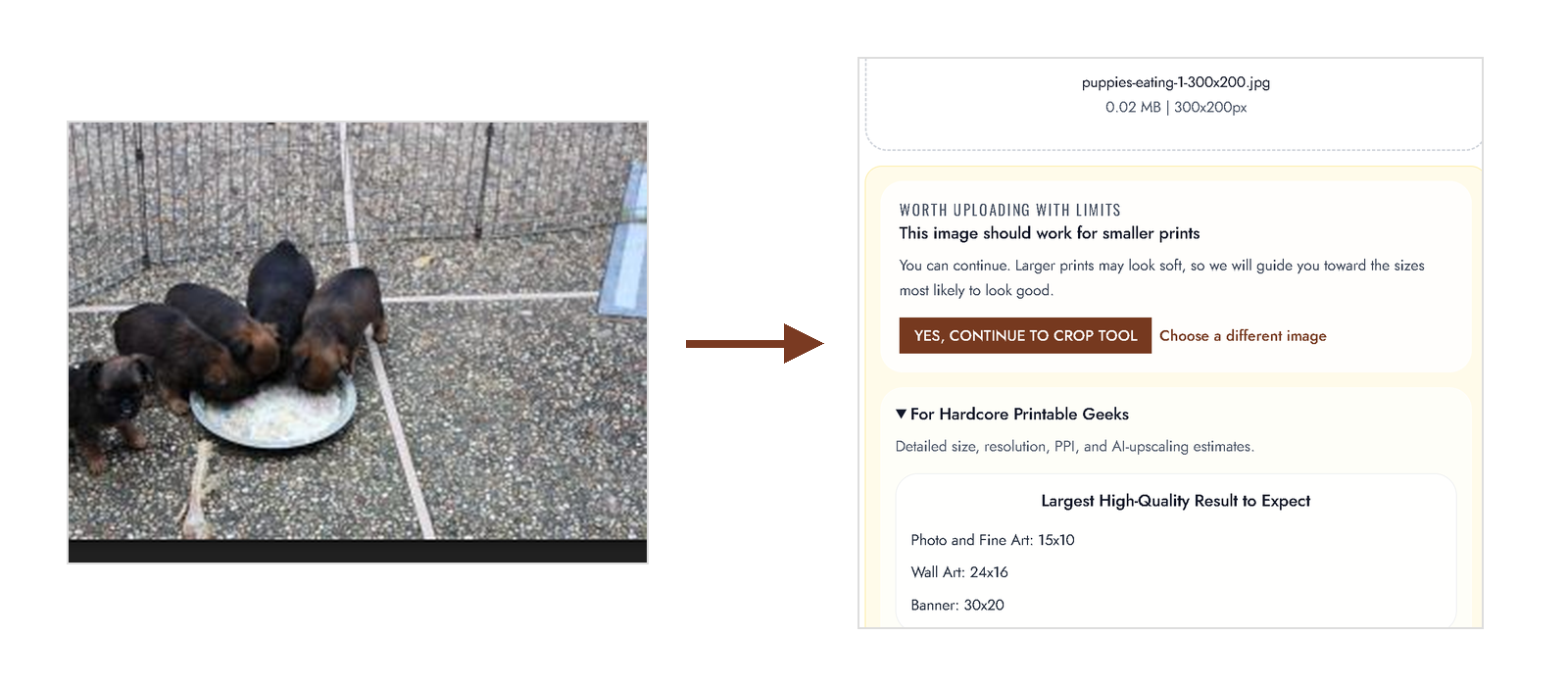
300x200px source. The largest reliable result: 24×16 Wall Art, 15×10 Photo and Fine Art, 30×20 Banner.
720x540px source. The largest reliable result: 56×42 Wall Art, 36×27 Photo and Fine Art, 60×45 Banner.
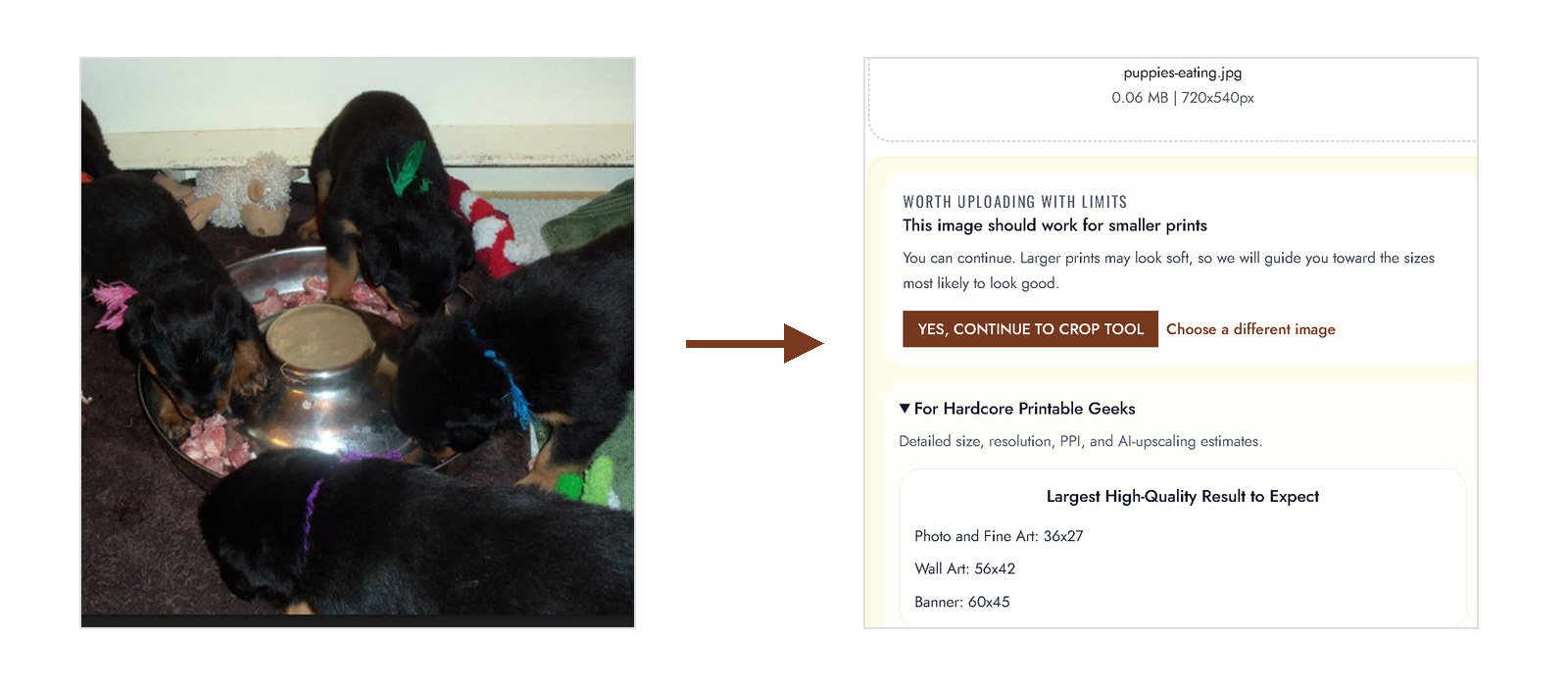
What upsizing does instead
Upsizing is what a plain resize in a tool like Photoshop does. It relies on interpolation methods like nearest neighbor, which look at one pixel, measure the distance to the next, and stretch the space between them.
It is not adding detail. It is only spreading the same detail thinner.
You still get an output this way. It is just not as good as upscaling, which resolves real detail instead of guessing at it.
Take that method far enough and the flaw becomes obvious. Resize a small image to cover a wall from floor to ceiling, and each pixel gets stretched into a big, blocky square you can see with the naked eye.
It looks fine from across the room. It never resolves up close.
What 300 DPI actually means
The same file can be 300 DPI at one size and 150 DPI at double that size, because DPI measures pixels per inch at a specific print dimension, not a property baked into the file itself.
The math, worked out
Take a file that is 3000 by 3000 pixels. Print it at 10×10 inches and you get exactly 300 pixels per inch: true 300 DPI.
Print that same file at 20×20 inches without changing a single pixel, and now only 150 pixels cover each inch. The file didn’t get worse; the job you’re asking it to do got bigger.
The file didn’t get worse. The job you’re asking it to do got bigger.
Start with your original file, not an already-upsized one
Printprep.art operates on the trust that your uploaded file has not already been upsized somewhere else. If it has, the process starts on the wrong foot before a single crop is made.
Upload the largest file that still represents the true, original resolution of your work. An already-upsized file carries pixels that are already stretched larger than they should be, and that softens and mutes the sharpness of the final output.
How Printprep.art shows you the real number
Printprep.art shows this size by size in the crop tool, before you generate a single file. Each size carries a DPI badge showing the native resolution at that size, alongside a separate badge showing the calculated DPI you would get by sending that size through the AI upscaler instead.
You see the real number for a 16×24 print next to the real number for a 24×36 print from the same file, so you know exactly where quality starts to drop before you commit an artwork slot to it. Color coding here communicates confidence, not a hard pass or fail.
A size below 300 DPI is not automatically a bad print. It depends on the art, the size, and how close a buyer stands to view it, so Printprep.art shows you the real number for every size instead of stopping you from generating one that falls short.
When a file reaches 300 DPI through a real AI upscale instead of a simple resize, Printprep.art calls that true 300 DPI, powered by the same Topaz upscaling technology sellers would otherwise pay for separately.
When lower than 300 DPI is still fine
Not every size needs to hit 300 DPI to sell well. Where that bar can flex depends on what you are printing and how closely a buyer will look at it:
- Fine art: viewers put their nose right up to the glass, so a true 300 DPI upscaled file needs to hold up at that distance. You might get away with 290 DPI, but that close, it’s a guess.
- Standard wall art: viewers are typically about four feet away, not close enough to spot heavily augmented pixels from the upscale. Even dropping to 250 DPI on an illustration, it will still look sharp to the casual observer.
- Banners and large format: viewers are far away, at a conference or on a billboard, so pixelation stops being a concern and you can go even larger.
Before you spend an artwork slot, think about the type of art you are uploading and decide whether true 300 DPI is achievable through upscaling, or whether dropping to 250 DPI works fine for what you need.
See the true DPI for every size before you spend an artwork slot on it.